
Quick answer
First, identify what you were given: a DICOM folder, a DICOMDIR or files with no extension
Before opening anything, look at what is on the disc or the stick. Almost every imaging center hands out the same structure, and knowing what each piece is saves you half the trouble.
| What you see | What it actually is |
|---|---|
| DICOMDIR | The index of the study. It is not an image; it tells the viewer where the series are and in what order. |
| A folder named DICOM or IMAGES | This is where the study lives, almost always in subfolders like ST0000 / SE0000 with files IM000001, IM000002… |
| Files with no extension | These are the slices. Not ending in .dcm means nothing: DICOM is identified by an internal signature, not by the file name. |
| An .exe, autorun.inf, a VIEWER folder | The Windows viewer the center included on the disc. It is optional and it is usually the part that fails. |
| A loose PDF | The radiologist’s report. Keep it separately: it is the text your doctor will read first. |
One detail that clears up a lot of confusion: a DICOM file is recognized by the letters DICM written at byte 128, right after an empty preamble. That is why renaming the file to .dcm fixes nothing — and breaks nothing either — and why a file called IM000034, with no dot and no extension, opens perfectly in any viewer. If your computer offers to open it with the photo viewer and fails, it is not because the disc was burned badly.
One exception worth checking: some centers hand out a .zip, .rar, .7z or .iso file. Unpack the archive and the same DICOM folder appears inside. The .iso is the image of an entire disc; on Windows it opens with a double click (it shows up as one more drive) and on a Mac it mounts on its own as well. Our browser viewer opens all of them as they are — the archive, the .iso and the folder — so you don’t even need to unpack them first.
Open it without installing anything, from the browser
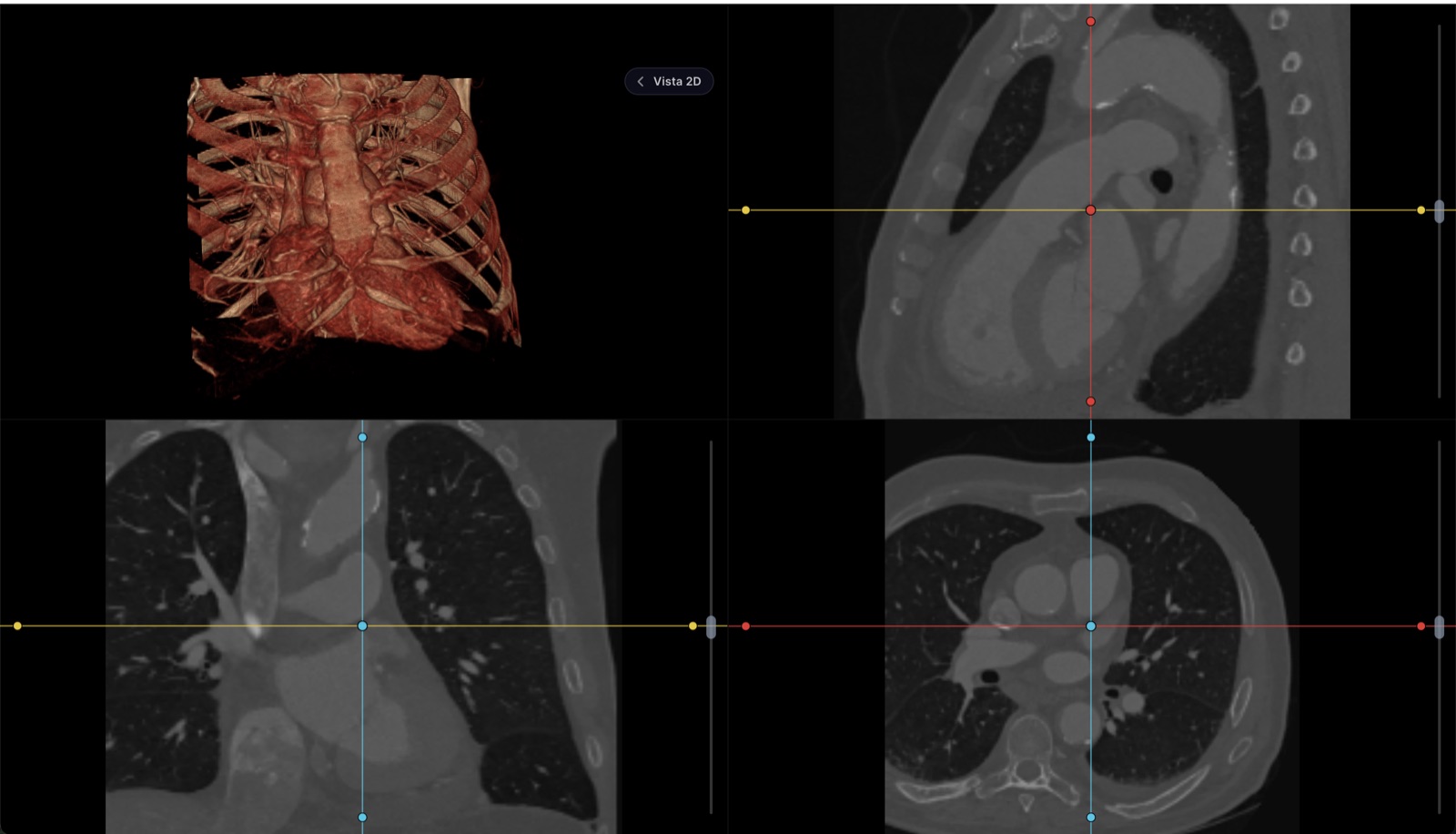
It is the shortest route and it works the same on Windows, Mac and Linux. You can do it right now in our online CT scan viewer: it is free, asks for no account and the study opens inside your browser — to view it, it is not uploaded to any server, we keep no copy, and nothing remains once you close the tab. It has the usual tools: change the contrast (window and level), scroll through the slices with the mouse wheel, measure in millimeters and, for CT scans, reconstruct in all three planes and in 3D. It accepts DICOM files with or without an extension, whole folders, ZIP, RAR, 7z and TAR archives, the CD copied as an .iso, NIfTI volumes (.nii, .nii.gz), loose JPG or PNG images and the report PDF.
Copy the entire CD or USB stick to a folder on your computer. Working from the optical disc is slow and, if it is scratched, it stalls halfway through the study.
Open the viewer and drag in the whole folder, not a single file: a study is hundreds or thousands of slices and one on its own says nothing.
Our viewer does not need the DICOMDIR; it reads the whole folder. Some desktop viewers do ask you to open that file to load the study.
Wait for the full series to finish loading before judging the image. On heavy CT scans the progress bar takes a while.
Pay attention to what it does with your files. If the viewer is only meant to view them, it should process them on your machine and keep nothing — that is how ours works; if it also stores them in a cloud, it has to tell you where they end up and who can look at them. It is your medical information; it is worth reading.
If you would rather not depend on the browser, there is desktop software: Weasis is free and open source (EPL license) and runs on Windows, Mac and Linux. It is still a good option for anyone who reviews heavy studies every day or without an internet connection. To look at your MRI once, the browser saves you the download and the installation.
And once you have seen it, that file has a destination: your doctor. Bring the CD or the USB stick to the appointment — with the radiologist’s report as a PDF — or ask them to upload it to your record, so that at the follow-up six months from now it can be compared against this study without you having to carry the disc around again.
On Windows: why the Photos app doesn’t recognize it and what to do with the .exe on the CD
Windows associates known extensions with their applications; DICOM is not on that list and most of the slices don’t even have an extension. That is why the Photos app opens to a black screen, complains about the format or simply does not show up as an option. There is nothing to repair.
About the program that comes on the disc: it was the solution fifteen years ago, when CDs launched on their own. Today Windows has blocked AutoRun for USB drives and restricted it for discs, SmartScreen warns about unsigned executables, and many of those viewers expect libraries from earlier versions of Windows. You can try going into the disc’s folder and running the file by hand — it is usually called something like viewer.exe, start.exe or the name of the scanner’s brand — but if it asks for administrator rights or crashes, stop insisting: the images are complete in the DICOM folder and any other viewer reads them.
On Windows the fastest thing is to skip the .exe and open the folder in the browser DICOM viewer, which installs nothing and asks for no administrator rights; the Windows-specific details are in DICOM viewer for Windows. If you still prefer an installed program, check the license before downloading. Weasis is free and open source (EPL license) and works equally for personal use and in the practice. MicroDicom is free only for personal, non-commercial use: using it in a practice requires a paid license. RadiAnt lets you try it for free for a limited time and then charges an annual license (from about €39 a year, per its store).
On a Mac: Preview doesn’t open DICOM — these are your options
On a Mac the problem shows up earlier: the viewer on the CD is a Windows executable and it does not run on macOS, period. And Preview, which opens almost any image or PDF, has no DICOM support. On top of that, no recent Mac comes with a disc drive, so if you were given a CD you will need an external USB drive or you will have to ask for the study on a flash drive.
There are two ways out. The first, and the one that solves your day: the browser. Drag the folder onto the online CT scan viewer and that is it — nothing to install, no matter whether your Mac is Intel or Apple Silicon, and without the study leaving your computer to be viewed; the details are in DICOM viewer for Mac. The second, a native macOS viewer — Horos and Weasis are free and open source, OsiriX has a paid version — which makes sense if you are going to review studies often. One nuance matters for patients: the free versions of some of these programs are distributed expressly for non-diagnostic use. For viewing and understanding the study they are perfect; the diagnosis is signed by your physician.
On your phone: what works and what doesn’t
It can be done, with real limits. The first hurdle is not the viewer but getting the files there: a phone has no CD drive, so the study first has to go to a computer and from there to the cloud or to the phone. On an iPhone, the Files app unpacks a ZIP and lets you share the folder with a viewing app; on Android the file manager does the same.
What works well on a small screen: an X-ray, a mammogram viewed in general terms, an ultrasound, checking that the study matches the right date and name. What does not: a CT scan of several hundred megabytes with reconstruction in three planes. The phone’s memory fills up, loading takes forever and adjusting the window with a finger is awkward right when you need the most precision.
One piece of advice that applies to both audiences of this page: don’t take a photo of the screen to share the study. The photo loses the original contrast, it cannot be readjusted and it can no longer be measured. Share the file, or at least an export made from the viewer.
When the CD won’t read or arrived incomplete: what to ask the imaging center for
It happens more often than you would think: discs burned without closing the session, scratched on the way home, studies that only contain the reconstruction and not the original series, or folders missing half of the slices. Before giving up, try the disc on another computer and with a different drive; many failures are the drive’s fault, not the disc’s.
If it still won’t open, call the center. Studies live in their image archive (their PACS) for years, so handing it to you again is routine paperwork, not a favor. Ask for it in these words:
That they give it to you on a USB stick or through their web portal, not on a CD.
That it includes the complete DICOM files, with every series — not just the reconstruction images or JPG screenshots.
That the DICOMDIR comes along with the study folder.
That they add the radiologist’s report as a PDF, signed and dated.
If it is a follow-up, that they also hand over the previous study so it can be compared.
If they send it through a portal with a link and a password, download it the same day: those links expire. And keep your own copy. Centers keep studies for a limited time, and the patient who brings their complete history to the appointment saves the doctor half the questions.
If you are a physician: don’t let the study end up in the Downloads folder
Up to here, if you are a patient, you are done: you have seen your study and you know what to bring to your doctor. What follows is for the practice.
To open the CD the patient brings in the middle of a visit, the free browser viewer works just as well for you. The practice’s problem starts afterwards: every study you open that way is left as a loose folder on whichever computer you opened it from. Six months later, at the follow-up visit, the patient no longer brings the CD, you cannot find the file, and there is no way to compare against the prior study.
What changes the workflow is uploading the study to the patient’s record the moment you have it in front of you. There it stays tied to their history, it opens from any computer or tablet, and the next follow-up is compared against the previous one without searching for anything. You also stop sending studies over messaging apps or personal email, which is where control of the data is truly lost. In Mexico, NOM-024 — the standard for systems that exchange information within the national health system — spells out the underlying criteria: controlled access, encryption and a log of who looked at what. Whatever rules apply where you practice, those are the three things you should want for your own office even when nobody requires them.
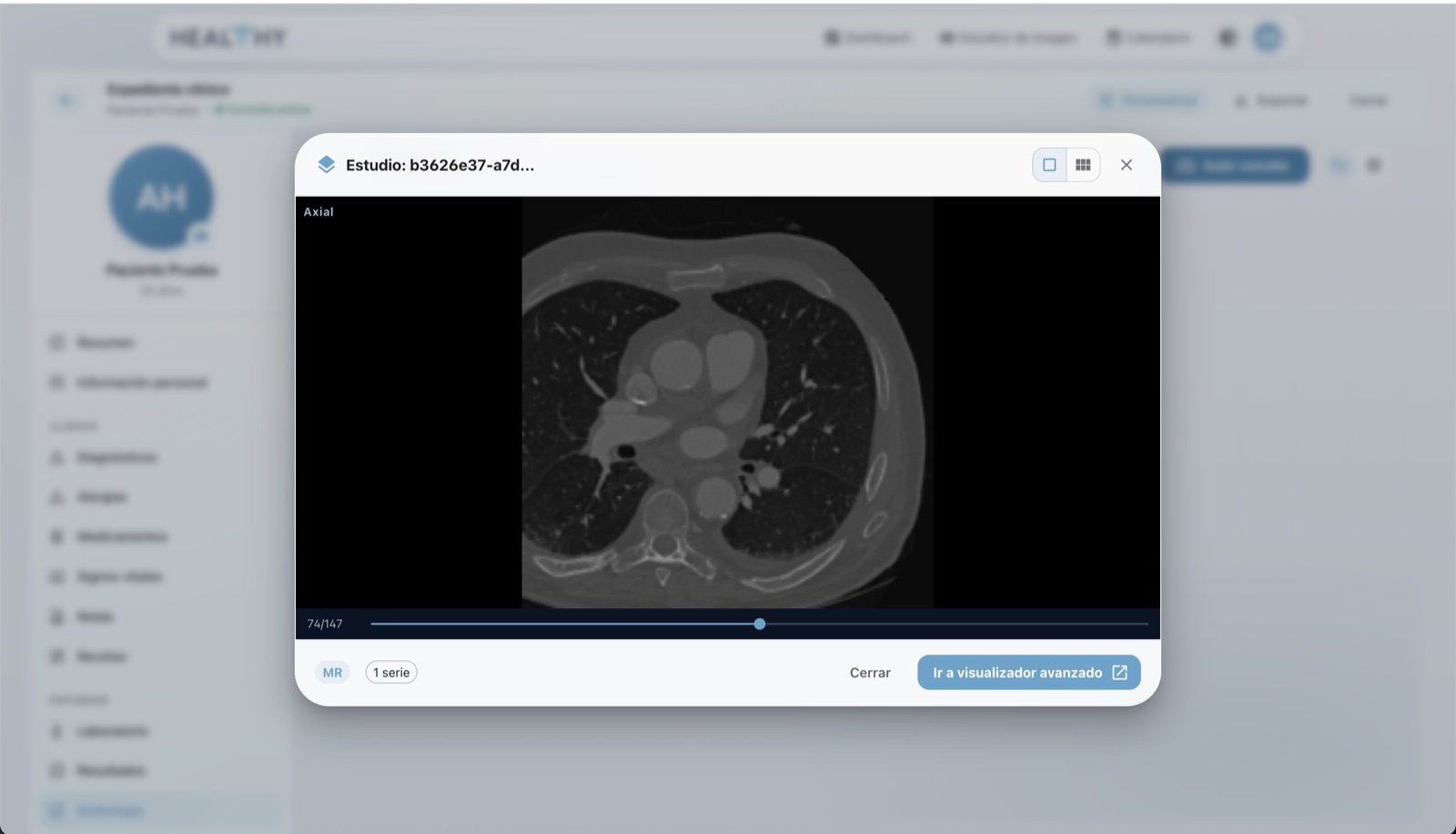
The same CD, uploaded to the record: it opens from the patient’s history, not from a folder on the desktop.
In Healthy Record, imaging is included in the record on every plan, starting with the free one, with no separate PACS to contract. It is the same viewer you can use to view CT scans online for free with no account — MPR, 3D, measurements — with the difference that there the study stays stored in the patient’s record. The plans are on the pricing page (in Spanish — the product serves clinics in Mexico).
Frequently asked questions
What is a .dcm file and why doesn’t my computer recognize it?
It is a file in the DICOM format, the worldwide standard for medical imaging. It is not a photo: it stores the slices of the study at a greater bit depth than a JPG, plus the physical calibration of every pixel and the data about the patient and the scanner. Windows and macOS ship with no viewer for that format, so they show the file as unknown. It is not damaged; it just needs a program that understands it.
What is DICOMDIR and what is it for?
It is the index of the disc: a file, usually in the root of the CD and with no extension, that lists which studies, series and images are there and in which folders. It does not contain the image itself. Many viewers ask you to open the DICOMDIR to load the whole study in one go. If you copy the CD to your computer, copy the entire folder, DICOMDIR included: if you only take a few loose folders, the index points to files that no longer exist.
Can I convert a DICOM file to JPG or PDF?
Yes, almost any viewer exports to JPG, PNG or PDF, and that is fine for sending your doctor a quick image over a messaging app. But it is a degraded copy: you lose the bit depth (which is why you can no longer adjust the contrast to see bone or soft tissue), you lose the millimeter calibration — measurements stop being valid — and you lose the data that identifies the study. Always keep the original DICOM files; the JPG is for showing, not for archiving.
Why won’t the viewer that came on the CD start?
Because it is usually an old Windows program, without a digital signature, that also depends on the disc launching itself. Windows blocked AutoRun for USB drives and restricted it for discs, SmartScreen warns about unsigned programs, and many of those viewers were built for earlier versions of Windows. On a Mac it simply does not run, because it is a Windows executable. Don’t waste the afternoon on the .exe: the DICOM files on the disc open in any other viewer.
Do I need to install anything to view my CT scan?
No. Our online DICOM viewer is free, asks for no account and opens the study inside your own browser: drag in the folder from the CD or the USB stick and you see it right there. Installing a desktop program still makes sense if you review heavy studies every day or without an internet connection, and in that case Weasis is free and open source for Windows, Mac and Linux.
Are my files uploaded to a server when I use the Healthy Record viewer?
Not to view them: the study is read and rendered inside your browser, we keep no copy, and nothing remains once you close the tab. That is exactly why you can use it without creating an account. It is only uploaded if you ask for a link to send it to your doctor, and in that case it is encrypted on your device (AES-256-GCM) before it leaves: the key travels inside the link itself, in the part after the “#” that browsers never send to a server, so we cannot read it. The link expires after 72 hours or 5 openings, whichever comes first, and the file is deleted afterwards. With other web viewers it is worth checking: some upload the study to a cloud and keep it indefinitely, and they have to tell you so.
I have seen my study — does this replace what the radiologist says?
No. Viewing your study helps you understand it and arrive at your appointment with the file in hand, not diagnose yourself. The diagnosis is signed by your physician, and it is made on displays calibrated for radiology. Always bring the radiologist’s report as a PDF along with the original DICOM files.
I was given a USB stick instead of a CD — does that change anything?
For the better: it reads faster, it does not scratch, and your laptop probably has no disc drive anymore anyway. The contents are identical — the same DICOM folder, the same DICOMDIR, sometimes the same Windows viewer that does not launch on its own either — and it opens the same way. The one practical difference is that a USB stick can be erased by accident: copy the study to your computer or to the cloud as soon as you receive it.